
TBEST Pro Product Center
Download, Installation and Product Deployment
WORKSTATION SETUP
Before you install
For a new workstation, the IT administrator should install the required TBEST release and the ServiceEdge TBEST Pro Product Center. After installation, verify that the local Windows account has the permissions required to work with the TBEST data folder.
Install Requirements
- TBEST 5.2 installed on the local computer. Refer to the TBEST Installation Instructions for more information on TBEST deployment steps.
- The local Windows user account must have read / write / execute permission to the TBEST data folder, normally
C:\TBEST50. - Obtain a TBEST Pro Subscription Key supplied by ServiceEdge Solutions.
- Internet access for subscription activation and authorized product downloads.
Product Center Installation
- Download the TBEST Pro Product Center .zip file.
- Extract the zip contents to a local folder.
- Run the included installer and follow the setup prompts. Your organization may require administrator assistance.
- Launch TBEST Pro Product Center from the Windows Start Menu, then follow the subscription activation steps below.
SUBSCRIPTION ACTIVATION
Activate the Organization Subscription
Activation connects the local Product Center installation to the organization subscription and determines which products are available.
1
Launch Product Center
2
Add Subscription
3
Enter Subscriber Info
4
Activate
5
Manage Products
Select Manage TBEST Pro Products for the active subscription to view authorized products.
New Subscriptions
When Product Center is first launched, no subscriptions are listed. The user begins by selecting Add Subscription.
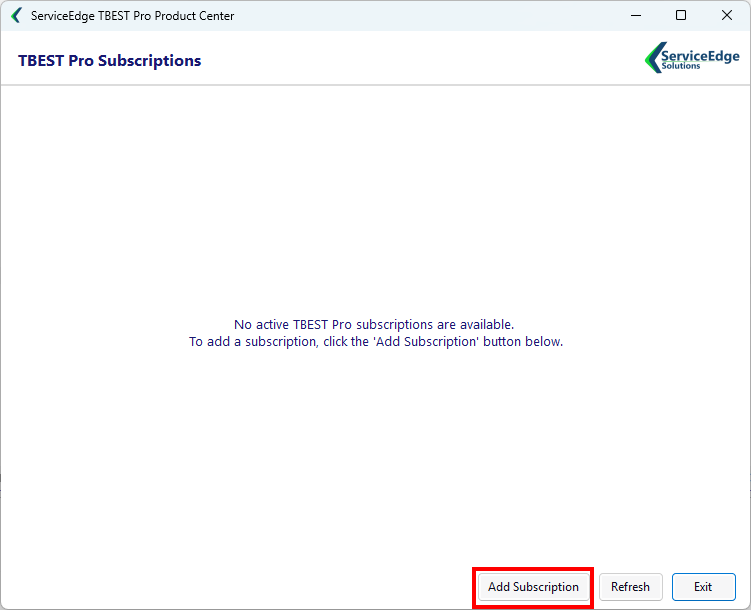
Users can obtain a subscription key from ServiceEdge Solutions.
Activated Subscription
Active subscriptions display the Organization Name, Subscription Plan name, Status and Expiration Date.
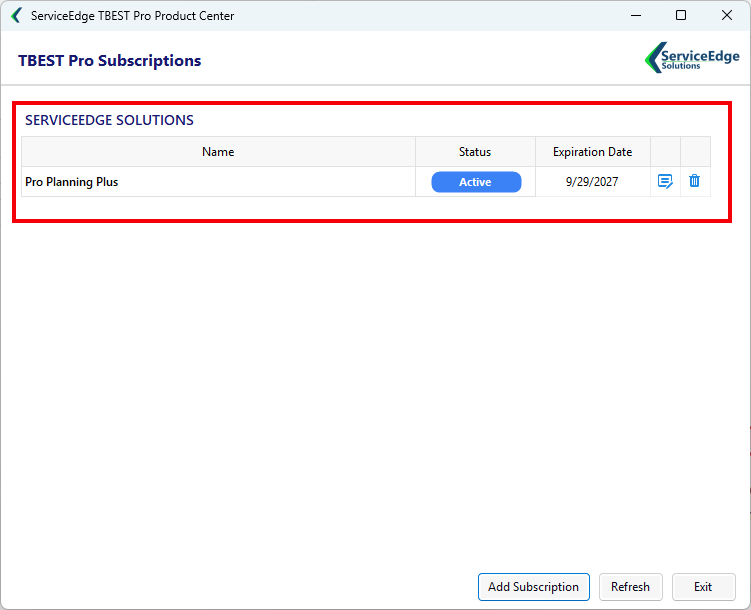
Subscriptions can be removed from the local user machine using the Trash button.
TBEST Pro Product Deployment - GTFS PRO APPS
Deploy and Launch
1. Manage Products
Within the Product Center, on the active subscription line, open Manage TBEST Pro Products.
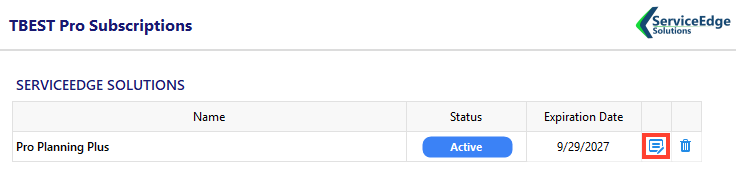
2. Download and Install
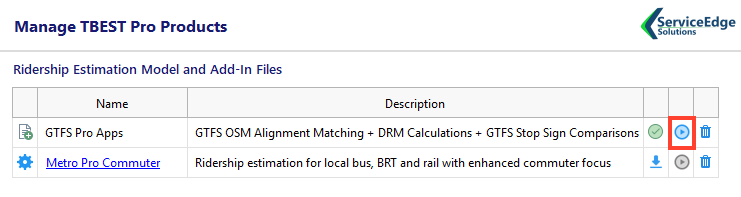
On the Manage TBEST Pro Products page, locate GTFS Pro Apps in the list of Ridership Estimation Model and Add-In Files and click the download/install button. Product Center deploys the application to the workstation.
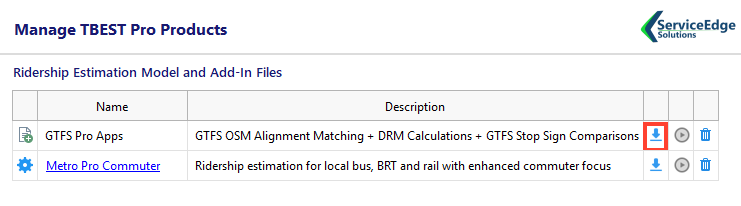
3. Launch
After deployment completes, click the GTFS Pro Apps launch button in Product Center. GTFS Pro Apps can also be started from within TBEST under the Tools menu.
4. Optional Windows shortcut
After launching, the GTFS Pro Apps application can be pinned to the Windows Taskbar or Start Menu for convenient access. Note that Models can’t be pinned to the Taskbar.
RIDERSHIP ESTIMATION MODEL
Model Installation Uses the Same Managed Deployment Pattern
Authorized ridership estimation models can be distributed through Product Center in the same way as application Add-Ins. The organization subscription controls access to the model package, and Product Center handles the download and installation step.
Typical Model Installation Workflow
- Activate the organization TBEST Pro subscription.
- Open Manage TBEST Pro Products.
- Locate the authorized model package, such as Metro Pro, Metro Pro Commuter or another customer-specific model.
- Select Download and Install.
- Launch a TBEST Ridership Estimation Model Run. Note that the model package must already be referenced by a TBEST Network Scenario.
- Open TBEST and use the installed model through the applicable ridership-estimation workflow.
Individual model packages may have additional configuration or data requirements. Product-specific instructions will accompany those packages where needed.
TBEST Pro Data Deployment
Enable TBEST Pro Data
1. Manage Products
Within the Product Center, on the active subscription line, open Manage TBEST Pro Products.
2. Set the TBEST Data Downloads Host
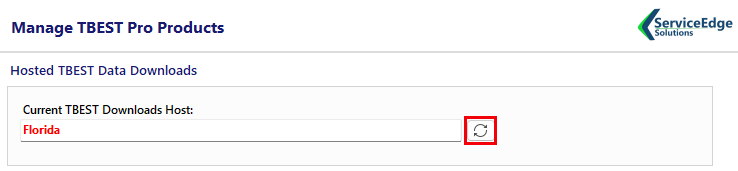
On the Manage TBEST Pro Products page, in the Hosted TBEST Data Downloads set the Current TBEST Downloads Host by clicking the Load button. Note that if the current TBEST downloads host does not reference the subscription host, the host name will appear in red.
3. Updated TBEST Data Downloads Host
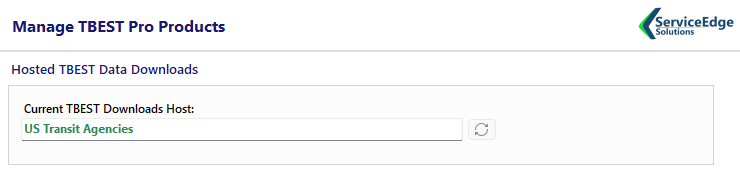
Once the Current TBEST Downloads Host references the subscription, the host name appears in green.
4. TBEST Downloads
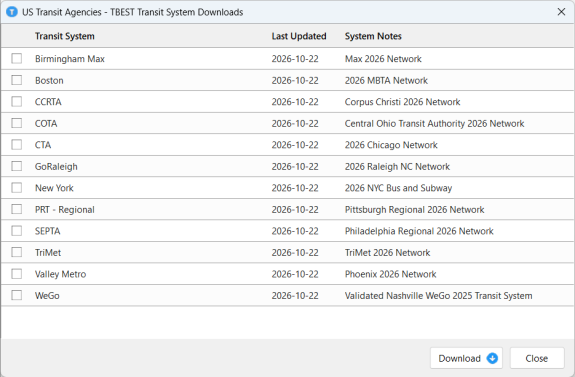
Within TBEST, the Transit System and Socio-Economic Data Downloads are directed to the client hosted content.
Common installation questions
Windows displays a security prompt?
Check that the installer is the expected ServiceEdge download and verify its publisher and digital signature before proceeding. Do not bypass a warning if the source or publisher cannot be verified.
Need to reinstall or move to a new computer?
Deactivate all existing TBEST Pro subscriptions on the current computer. Download the current installer from this page. Contact ServiceEdge support if you need assistance with subscriptions or activation on a replacement computer.
Need installation assistance?
Contact ServiceEdge Solutions for help with installation or Product Center access.